
NueForm-Formulare lassen sich direkt in jede Website einbetten. Diese Anleitung behandelt alle Einbettungsmethoden — vom einfachen iframe bis zur Integration mit eigener Domain.
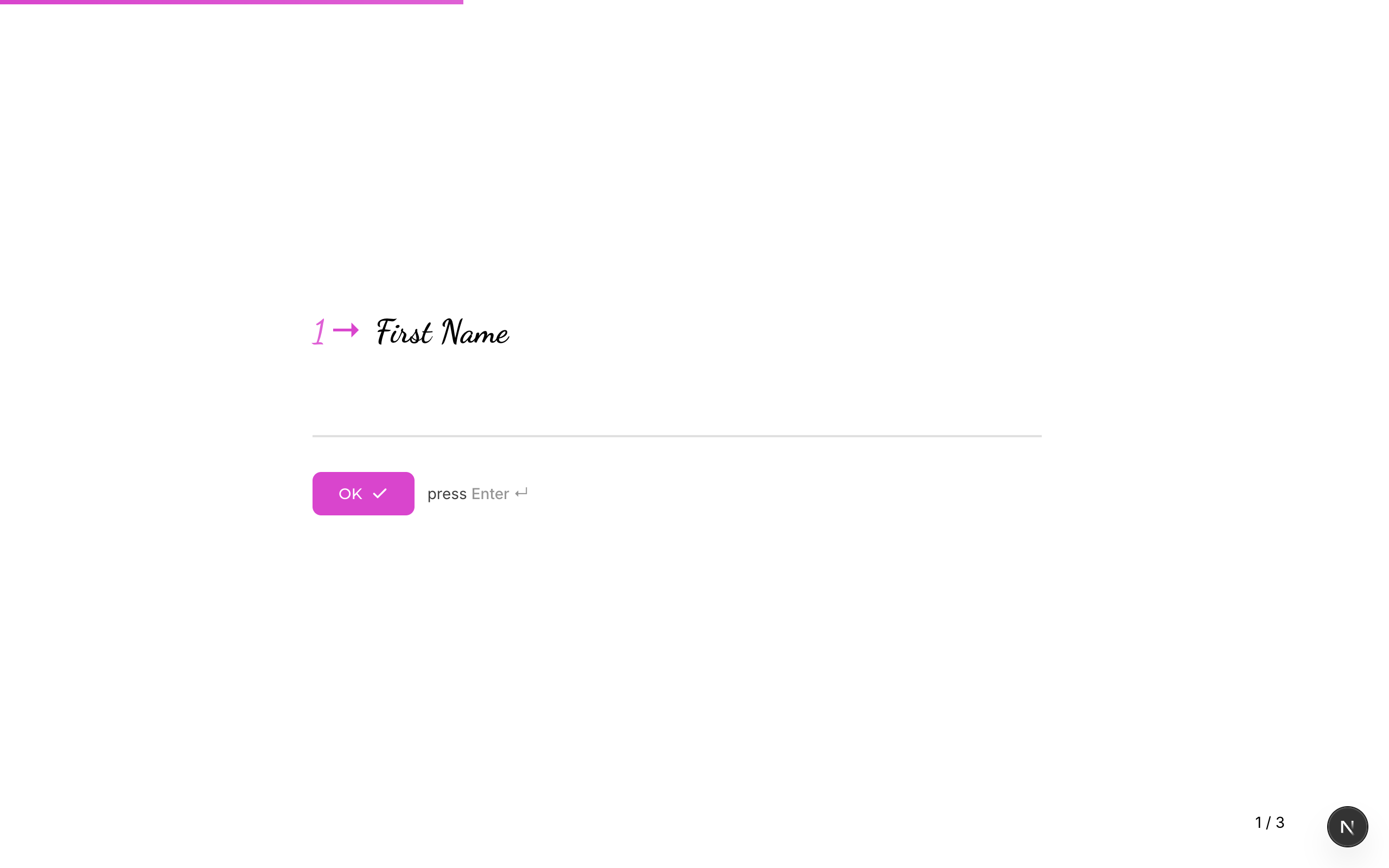
Schnellstart: iframe-Einbettung
Der einfachste Weg, ein Formular einzubetten, ist ein HTML-<iframe>:
<iframe
  src="https://app.nueform.io/f/your-form-slug"
  width="100%"
  height="600"
  frameborder="0"
  allow="camera; microphone"
  style="border: none;"
></iframe>
Ersetze your-form-slug durch den Slug deines Formulars. Du findest ihn in den Formulareinstellungen oder in der öffentlichen URL des Formulars.
Einbettungsmethoden
Ganzseitiges iframe
Für ein Formular, das die ganze Seite oder einen großen Bereich einnimmt:
<iframe
  src="https://app.nueform.io/f/your-form-slug"
  width="100%"
  height="100vh"
  frameborder="0"
  allow="camera; microphone"
  style="border: none; min-height: 100vh;"
></iframe>
Damit erhält das Formular die volle Viewport-Höhe — ideal für mehrstufige Formulare mit fließenden Übergängen.
Inline-iframe
Zum Einbetten eines Formulars in einen Inhaltsbereich (z. B. in einen Blogartikel oder einen Abschnitt einer Landingpage):
<div style="max-width: 720px; margin: 0 auto;">
  <iframe
    src="https://app.nueform.io/f/your-form-slug"
    width="100%"
    height="500"
    frameborder="0"
    allow="camera; microphone"
    style="border: none; border-radius: 8px; box-shadow: 0 2px 8px rgba(0,0,0,0.1);"
  ></iframe>
</div>
Einbettung per Script-Tag
Für eine stärker integrierte Lösung nutzt du ein Script-Tag, das das iframe automatisch erstellt und dimensioniert:
<div id="nueform-container" data-form="your-form-slug"></div>
<script>
  (function() {
    var container = document.getElementById('nueform-container');
    var slug = container.getAttribute('data-form');
    var iframe = document.createElement('iframe');
    iframe.src = 'https://app.nueform.io/f/' + slug;
    iframe.width = '100%';
    iframe.height = '600';
    iframe.frameBorder = '0';
    iframe.allow = 'camera; microphone';
    iframe.style.border = 'none';
    container.appendChild(iframe);
  })();
</script>
Dieser Ansatz hält dein HTML sauber und macht das Austauschen von Formularen einfach — du änderst nur das data-form-Attribut.
Einbettung mit eigener Domain
Wenn du einen Pro- oder Enterprise-Tarif mit konfigurierter eigener Domain oder Subdomain hast, bette Formulare über deine eigene URL ein:
<!-- Using a custom subdomain -->
<iframe
  src="https://acme.nueform.io/f/your-form-slug"
  width="100%"
  height="600"
  frameborder="0"
  style="border: none;"
></iframe>

<!-- Using a fully custom domain -->
<iframe
  src="https://forms.acme.com/f/your-form-slug"
  width="100%"
  height="600"
  frameborder="0"
  style="border: none;"
></iframe>
Eigene Domains entfernen das NueForm-Branding aus der URL — Befragte erhalten ein vollständig White-Label-Erlebnis.
Die Einrichtung findest du unter Custom Domains.
Responsive Größenanpassung
Feste Höhe mit Scrollen
Der einfachste Ansatz. Das Formular scrollt intern, wenn der Inhalt höher ist als das iframe:
<iframe
  src="https://app.nueform.io/f/your-form-slug"
  width="100%"
  height="600"
  frameborder="0"
  style="border: none;"
></iframe>
Höhe auf Viewport-Basis
Lässt das iframe den Browser-Viewport ausfüllen:
<iframe
  src="https://app.nueform.io/f/your-form-slug"
  width="100%"
  frameborder="0"
  style="border: none; height: 100vh;"
></iframe>
Container mit Seitenverhältnis
Hält ein konsistentes Seitenverhältnis über alle Bildschirmgrößen hinweg:
<div style="position: relative; width: 100%; padding-bottom: 75%; /* 4:3 ratio */">
  <iframe
    src="https://app.nueform.io/f/your-form-slug"
    frameborder="0"
    allow="camera; microphone"
    style="position: absolute; top: 0; left: 0; width: 100%; height: 100%; border: none;"
  ></iframe>
</div>
Mobile-responsive Einbettung
Passe die iframe-Höhe mit CSS-Media-Queries an die Bildschirmgröße an:
<style>
  .nueform-embed {
    width: 100%;
    border: none;
    height: 700px;
  }

  @media (max-width: 768px) {
    .nueform-embed {
      height: 500px;
    }
  }

  @media (max-width: 480px) {
    .nueform-embed {
      height: 100vh;
      min-height: 400px;
    }
  }
</style>

<iframe
  class="nueform-embed"
  src="https://app.nueform.io/f/your-form-slug"
  frameborder="0"
  allow="camera; microphone"
></iframe>
URL-Parameter übergeben
Du kannst versteckte Felder vorbefüllen oder Tracking-Daten an eingebettete Formulare übergeben — per URL-Parameter. Alle URL-Parameter am iframe-src stehen dem Formular als Werte für versteckte Felder zur Verfügung.
Versteckte Felder
Wenn dein Formular Variablen konfiguriert hat (z. B. utm_source, user_id), übergib sie als Query-Parameter:
<iframe
  src="https://app.nueform.io/f/your-form-slug?utm_source=website&utm_campaign=spring_sale&user_id=12345"
  width="100%"
  height="600"
  frameborder="0"
  style="border: none;"
></iframe>
Diese Werte werden im metadata.hiddenFields-Objekt der Response erfasst und sind über die API und in CSV-Exporten zugänglich.
Dynamische Parameter
Nutze JavaScript, um dynamische Werte einzusetzen:
<script>
  var formUrl = 'https://app.nueform.io/f/your-form-slug';
  var params = new URLSearchParams({
    user_id: getUserId(),           // Your function
    email: getUserEmail(),          // Your function
    utm_source: getUTMSource(),     // Your function
    timestamp: Date.now().toString()
  });

  var iframe = document.createElement('iframe');
  iframe.src = formUrl + '?' + params.toString();
  iframe.width = '100%';
  iframe.height = '600';
  iframe.frameBorder = '0';
  iframe.style.border = 'none';

  document.getElementById('form-container').appendChild(iframe);
</script>
Framework-spezifische Beispiele
React
function NueFormEmbed({ slug, params = {} }) {
  const queryString = new URLSearchParams(params).toString();
  const src = `https://app.nueform.io/f/${slug}${queryString ? '?' + queryString : ''}`;

  return (
    <iframe
      src={src}
      width="100%"
      height="600"
      frameBorder="0"
      allow="camera; microphone"
      style={{ border: 'none' }}
      title="NueForm"
    />
  );
}

// Usage
<NueFormEmbed
  slug="customer-feedback"
  params={{ user_id: '12345', utm_source: 'app' }}
/>
Vue
<template>
  <iframe
    :src="formSrc"
    width="100%"
    height="600"
    frameborder="0"
    allow="camera; microphone"
    style="border: none;"
  />
</template>

<script setup>
import { computed } from 'vue';

const props = defineProps({
  slug: String,
  params: { type: Object, default: () => ({}) }
});

const formSrc = computed(() => {
  const query = new URLSearchParams(props.params).toString();
  return `https://app.nueform.io/f/${props.slug}${query ? '?' + query : ''}`;
});
</script>
Next.js
export default function FormPage() {
  return (
    <div className="max-w-3xl mx-auto py-8">
      <h1>Contact Us</h1>
      <iframe
        src="https://app.nueform.io/f/contact-form"
        width="100%"
        height="600"
        frameBorder="0"
        allow="camera; microphone"
        style={{ border: 'none' }}
        title="Contact Form"
      />
    </div>
  );
}
Berechtigungen und Funktionen
Manche NueForm-Fragetypen benötigen beim Einbetten bestimmte Browser-Berechtigungen. Gewähre sie über das allow-Attribut des iframes:
| Funktion | allow-Wert | Fragetypen |
|---|---|---|
| Kamera | camera | Aufnahme (Videomodus) |
| Mikrofon | microphone | Aufnahme (Audio-/Videomodus) |
<iframe
  src="https://app.nueform.io/f/your-form-slug"
  allow="camera; microphone"
  ...
></iframe>
Wenn dein Formular keine Aufnahmefragen verwendet, sind diese Berechtigungen nicht nötig.
Fehlersuche
| Problem | Lösung |
|---|---|
| Formular lädt nicht im iframe | Prüfe, ob das Formular veröffentlicht ist. Unveröffentlichte Formulare liefern 404. |
| Formular wirkt zu klein oder abgeschnitten | Erhöhe die iframe-height oder nutze height: 100vh. |
| URL-Parameter werden nicht erfasst | Prüfe, ob im Formular Variablen konfiguriert sind, deren Namen den Parameter-Keys entsprechen. |
| Browser blockiert das iframe | Manche Browser blockieren Drittanbieter-Cookies. Das beeinträchtigt in der Regel nicht die Formulardarstellung, kann aber das Analytics-Tracking betreffen. |
| Kamera/Mikrofon funktioniert nicht | Füge allow="camera; microphone" zum iframe-Tag hinzu. |
Verwandte Themen
- Custom Domains --- Einbettung mit eigener Domain einrichten
- Themes & Styling --- Das Aussehen deines eingebetteten Formulars anpassen
- Export als React --- Für eine native Integration ohne iframes