
Overview
NueForm Teams let you collaborate with colleagues on forms. Create a team, invite members with different permission levels, and manage forms together.
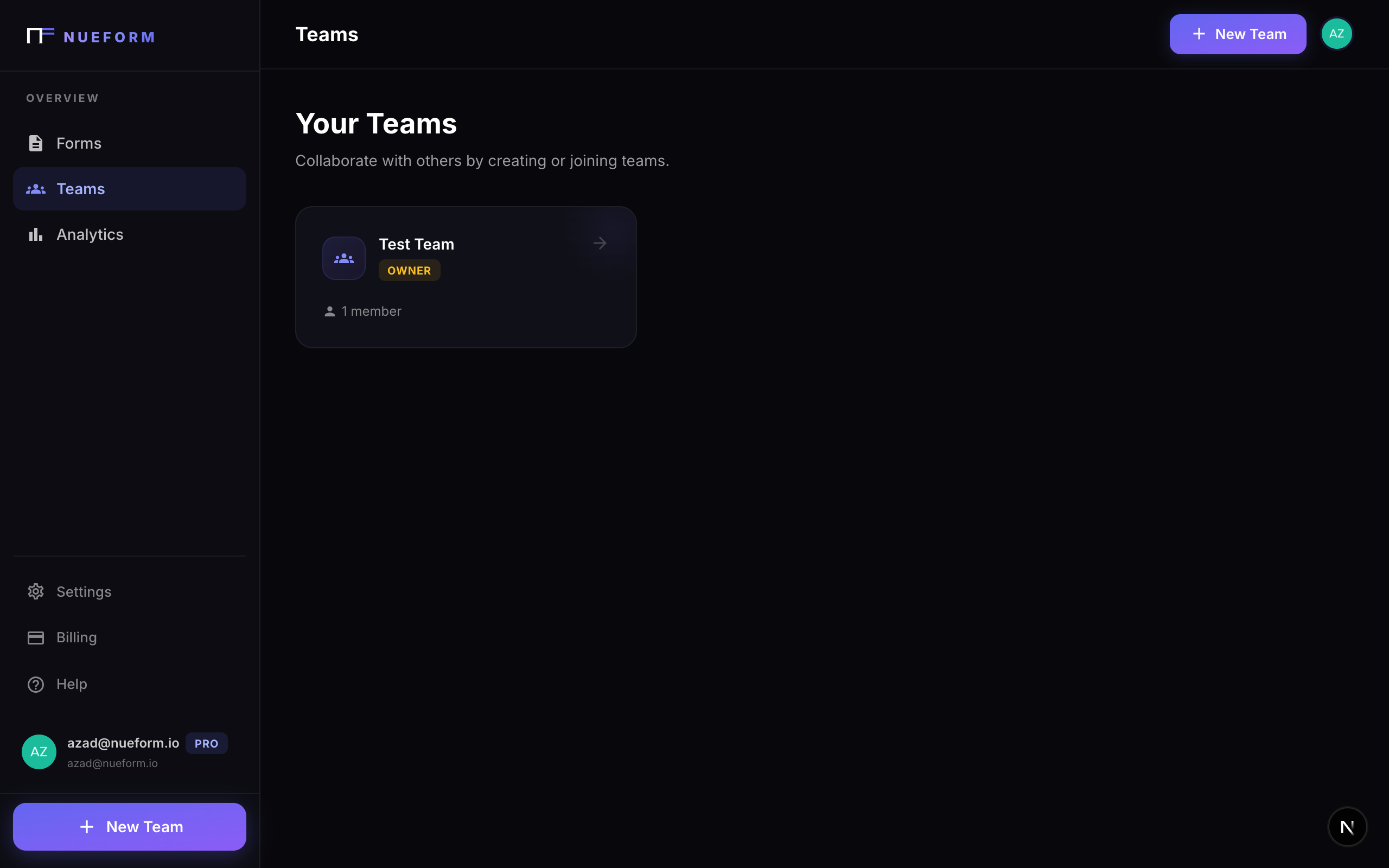
Creating a Team
To create a team:
- Navigate to the Teams section from your dashboard.
- Click Create Team.
- Enter a team name (e.g., "Marketing Team").
- A unique team slug is automatically generated from the name.
- Click Create.
The user who creates the team is automatically assigned the Owner role.
Team Properties
| Property | Description |
|---|---|
| Name | The display name of the team. |
| Slug | A unique URL-friendly identifier for the team. Auto-generated from the name. |
| Owner ID | The user who created and pays for the team. |
Roles
NueForm supports four team roles, each with different permission levels:
| Role | Description | Permissions |
|---|---|---|
| Owner | The team creator. Only one owner per team. | Full access to all team settings, billing, members, and forms. Can delete the team. |
| Admin | Trusted team managers. | Can manage members (invite, remove, change roles), create, edit and publish all team forms, and adjust team settings. Cannot delete the team or transfer ownership. |
| Editor | Content creators and form builders. | Can create new forms, edit existing team forms, and view responses. Cannot publish or unpublish team forms, or open and close them for responses — admins and owners do that (see Publish Permissions). Cannot manage team members or settings. |
| Viewer | Read-only access. | Can view team forms and responses but cannot create, edit, or publish forms. Cannot manage team members. |
Invitations
Sending Invitations
Team owners and admins can invite new members:
- Navigate to your team's settings.
- Click Invite Member.
- Enter the invitee's email address.
- Select a role (defaults to Editor).
- Click Send Invitation.
Invitation Properties
| Property | Description |
|---|---|
| The email address of the invited person. | |
| Role | The role assigned when the invitation is accepted. Default: editor. |
| Invited By | The user who sent the invitation. |
| Token | A unique, secure token for the invitation link. Only owners and admins can see it. |
| Expires At | When the invitation expires. |
| Status | Current status: pending, accepted, or expired. |
Accepting Invitations
When someone is invited to a team:
- They receive an email with an invitation link containing a unique token.
- Clicking the link takes them to NueForm.
- If they already have a NueForm account, they are added to the team.
- If they do not have an account, they create one first, then the invitation is applied.
Teams that sign in with SSO. If your team uses your company's SSO and auto-join is off, an invitation is also the approval to sign in. Invite the exact email address your company's SSO uses for the person. They don't need the link: the first time they sign in with SSO, they join the team automatically at the invited role. An invitation sent to any other address — an alias or a personal email — can't be used this way. See Require Respondent Login for how auto-join and SSO sign-in work together.
Invitation Expiration
Invitations expire after 7 days. Expired invitations cannot be accepted, and there is no resend: a team owner or admin creates a new invitation for the same email address instead. A pending invitation holds a seat on the team owner's plan until it expires. An expired invitation stops counting toward your seats at once; on Enterprise, where seats beyond the included count are billed, your bill follows within about an hour.
Team Forms
Creating Team Forms
When a member with Editor (or higher) permissions creates a form, they can assign it to the team:
- Personal forms are owned by the individual user and only visible to them.
- Team forms are owned by the team and visible to all team members based on their role.
Form Ownership
Each form has both a userId (the creator) and an optional teamId:
- If
teamIdis set, the form belongs to the team and is governed by team permissions. - If
teamIdis null, the form is a personal form.
Collaboration
All team members with appropriate permissions can:
- View the form in the team's form list.
- Edit the form (Editor role and above).
- Publish changes (Admin role and above — see Publish Permissions).
- View responses (all roles).
Changes made by any team member are tracked in the form's change log, including the user's name and what they changed. This provides a full audit trail of who modified what.
Managing Members
Changing Roles
Owners and admins can change a member's role:
- Go to team settings.
- Find the member in the members list.
- Select a new role from the dropdown.
- The change takes effect immediately.
Removing Members
Owners and admins can remove members from the team:
- Go to team settings.
- Find the member to remove.
- Click Remove.
- The member loses access to all team forms immediately.
Removing a member also cancels any pending invitation to them, so an old invitation can't bring them back.
Removing a member does not delete any forms they created for the team. Those forms remain owned by the team and accessible to other members.
Team Seats
Every team member — regardless of role — counts toward your plan's seat limit. The Viewer role still exists for read-only access; it is no longer billed differently from other roles.
| Seat Type | Counts Against Limit? | Cost |
|---|---|---|
| Owner | Yes (1 per team) | Included |
| Admin | Yes | Included up to plan limit, then $1/mo (Enterprise only) |
| Editor | Yes | Included up to plan limit, then $1/mo (Enterprise only) |
| Viewer | Yes | Included up to plan limit, then $1/mo (Enterprise only) |
Pro plans include 5 team members and are capped at 5. Enterprise plans include 10 team members and allow unlimited additional seats at $1/mo per seat.
Publish Permissions
Editors can create and edit forms, but only admins and owners can publish forms. This creates a natural approval workflow:
- An editor creates or updates a form in the builder.
- The editor requests publishing by notifying an admin or owner.
- An admin or owner reviews the form and publishes it.
This ensures that all published forms go through a review process before going live. Editors can preview their changes at any time, but the public-facing version only updates when an admin or owner publishes.
The same rule covers unpublishing a form and opening or closing it for responses. Editors see a form's Live / Closed switch in the forms list and on its dashboard, but can't change it, and the REST API and the MCP server refuse an editor's publish and unpublish requests.
Team Branding
Teams on supported plans can set team-level branding defaults that automatically apply to all new forms created within the team. This ensures visual consistency across your organization.
Branding Options
- Logo: Upload a team logo that appears on all team forms.
- Colors: Set primary, background, and text colors.
- Fonts: Choose a default font family from Google Fonts.
- Footer: Add a custom footer message or links.
Branding Resolution Order
When a form is rendered, branding is resolved in this order:
- Form-level overrides — Any branding set directly on the form takes priority.
- Team branding — If no form-level override exists, team defaults apply.
- Owner defaults — If no team branding is set, the form owner's personal defaults apply.
- System defaults — NueForm's default styling.
Managing Team Branding
Only admins and owners can manage team branding. Navigate to your team settings and select the Branding tab to configure defaults.
To reset team branding back to the owner's personal defaults, click Reset to Defaults in the branding settings.
Team Custom Domains
Enterprise teams can configure custom domains and subdomains for their forms, giving respondents a fully branded experience.
Subdomains
Every team on a paid plan can claim a subdomain (e.g., yourteam.nueform.io). All team forms are then accessible at yourteam.nueform.io/form-slug.
Custom Domains
Enterprise teams can connect their own domain (e.g., forms.yourcompany.com):
- Navigate to team settings and select Domains.
- Enter your custom domain.
- Add the provided DNS records (CNAME) to your domain registrar.
- Click Verify to confirm DNS propagation.
- SSL is automatically provisioned once verification succeeds.
Guest Access
Guest access lets you invite external collaborators to specific forms without giving them full team membership. Guests can view or edit individual forms without seeing other team content.
How Guests Differ from Members
| Team Members | Guests | |
|---|---|---|
| Access scope | All team forms | Specific forms only |
| Count as seats | Editors/Admins do | No |
| See team settings | Based on role | No |
| Billing visibility | Admins/Owners | No |
Guest Limits by Plan
- Pro: Up to 10 guest collaborators per team
- Enterprise: Up to 50 guest collaborators per team
Inviting Guests
- Open a team form in the builder.
- Click the Share button or navigate to form settings.
- Select Invite Guest.
- Enter the guest's email and choose a permission level (View or Edit).
- The guest receives an email invitation to access that specific form.
Removing Guests
Admins and owners can remove guests from a form at any time. Removing a guest immediately revokes their access to that form.
Audit Log
Teams on the Enterprise plan have access to a HIPAA-ready audit log that tracks all team activity. The audit log records every significant action taken within the team, providing a complete history for compliance and security purposes.
For detailed information about the audit log, see the dedicated Audit Log guide.
Team Billing
Owners and admins can access the Billing tab in team settings to manage the team's subscription:
- View current plan and seat usage (total team members used vs. included).
- Upgrade or downgrade the team plan.
- Add extra seats beyond the plan's included count ($1/mo per additional seat on Enterprise, regardless of role).
- View invoices and payment history.
- Update payment method.
Every team member counts as a seat — Owners, Admins, Editors, and Viewers alike. Pro is capped at 5 included seats; Enterprise includes 10 with $1/mo per additional seat (any role).
Team Analytics
The Analytics tab in team settings provides an aggregated view of all team forms' performance:
- Total responses across all team forms.
- Completion rates broken down by form.
- Response trends over time.
- Top-performing forms by response count and completion rate.
- Team member activity showing who created and edited forms.
Team analytics help managers understand overall form performance without needing to check each form individually.
Telephony Permissions
Teams with telephony (AI phone forms) can control access to phone-related features independently of the standard team role. Each member has a telephony access level that determines what phone operations they can perform.
Telephony Access Levels
| Level | Description |
|---|---|
| None | No telephony access. Cannot view or interact with phone numbers, voices, or call logs. |
| Observer | Can view call logs, listen to recordings, and see phone numbers and team voices. Cannot make changes. |
| Operator | Can make outbound calls, link/unlink numbers to forms, and start campaigns. Cannot provision or release numbers. |
| Manager | Can provision and release numbers, manage campaigns, and pause/resume numbers. Cannot create team voices. |
| Full Access | Complete telephony control including creating/deleting team voices, managing all numbers, and configuring telephony settings. |
Default Access by Role
| Team Role | Default Telephony Access |
|---|---|
| Owner | Full Access (always) |
| Admin | Full Access |
| Editor | None |
| Viewer | None |
Admins can override the default telephony access for any member by selecting a different level in the member settings.
Team Voices
Team voices are custom AI voices shared across the entire team. When editing a team form, the voice selector shows both personal and team voices:
- Personal Voices are created by and belong to the individual user.
- Team Voices are shared with all team members who have Observer-level or higher telephony access.
Creating or deleting team voices requires Full Access telephony permission.
Team Phone Numbers
Phone numbers can be assigned to a team, making them available to all team members with appropriate telephony access. Team numbers show a Team badge in the form builder's telephony settings.
Paused numbers are visually dimmed and display a Paused badge. Paused numbers cannot make or receive calls until resumed by a user with Manager-level or higher telephony access.
Best Practices
- Use the right role: Assign the minimum permissions needed. Use Viewer for stakeholders who only need to see results, Editor for form builders, and Admin for team managers.
- Apply least privilege: Default new members to Viewer access and promote intentionally as their responsibilities grow. All seats are billed identically — role choice is about access scope, not cost.
- Set up team branding: Configure branding defaults early so all new forms are automatically on-brand.
- Use the publish workflow: Let editors create content while admins review and publish, ensuring quality control.
- Track changes: Use the audit log (Enterprise) to understand who modified forms and when.
- Invite guests for external collaboration: Use guest access instead of full team membership for contractors and clients.
- Organize with teams: Create separate teams for different departments or projects to keep forms organized and access controlled.