
Vue d'ensemble
Les équipes NueForm vous permettent de travailler à plusieurs sur vos formulaires. Créez une équipe, invitez des membres avec différents niveaux de permissions et gérez vos formulaires ensemble.
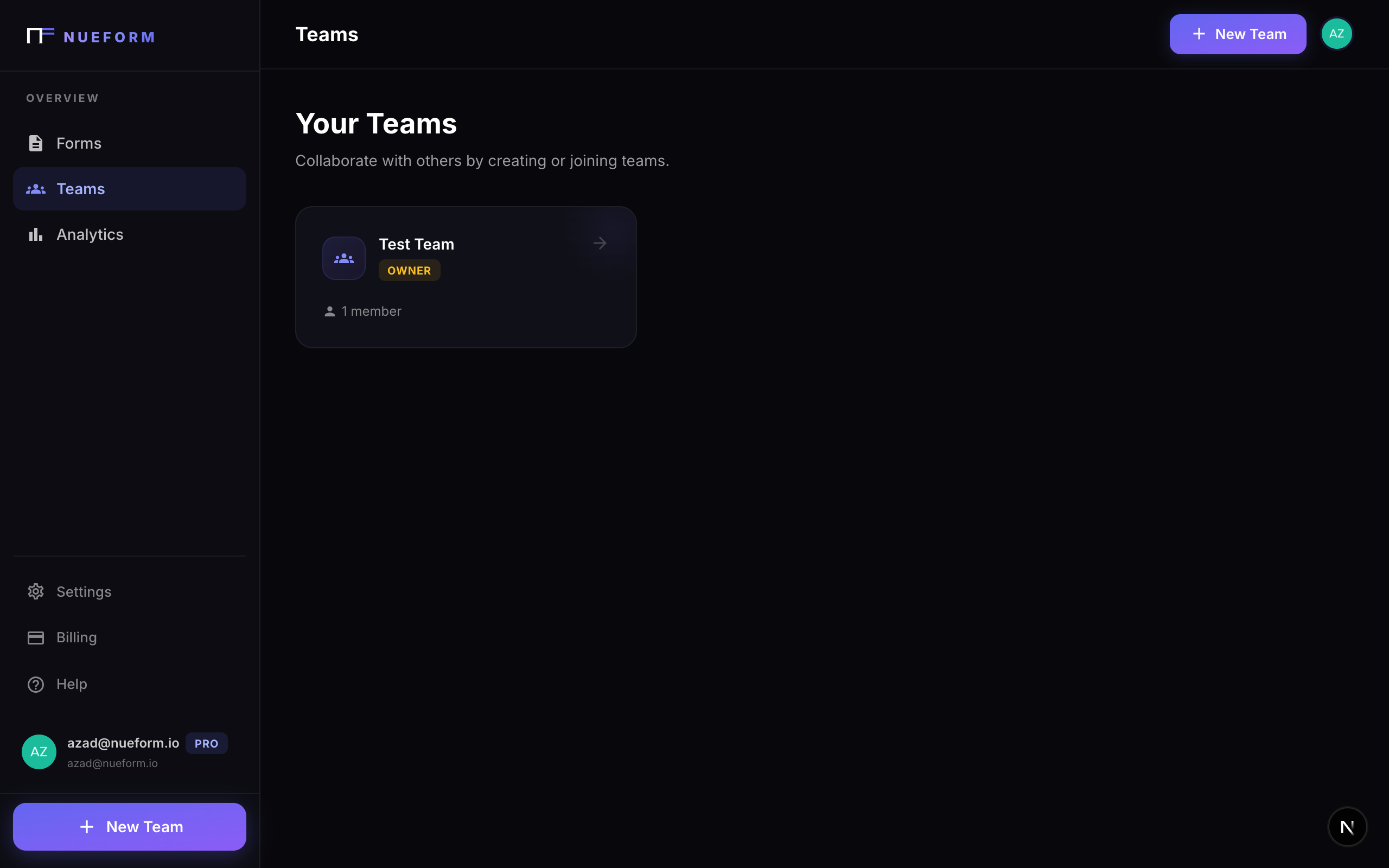
Créer une équipe
Pour créer une équipe :
- Ouvrez la section Équipes depuis votre tableau de bord.
- Cliquez sur Créer une équipe.
- Saisissez un nom d'équipe (par exemple « Équipe Marketing »).
- Un slug d'équipe unique est généré automatiquement à partir du nom.
- Cliquez sur Créer l'équipe.
L'utilisateur qui crée l'équipe reçoit automatiquement le rôle Propriétaire.
Propriétés de l'équipe
| Propriété | Description |
|---|---|
| Nom | Le nom affiché de l'équipe. |
| Slug | Un identifiant unique, utilisable dans une URL. Généré automatiquement à partir du nom. |
| ID du propriétaire | L'utilisateur qui a créé l'équipe et qui la paie. |
Rôles
NueForm propose quatre rôles d'équipe, chacun avec son propre niveau de permissions :
| Rôle | Description | Permissions |
|---|---|---|
| Propriétaire | Le créateur de l'équipe. Un seul propriétaire par équipe. | Accès complet aux paramètres de l'équipe, à la facturation, aux membres et aux formulaires. Peut supprimer l'équipe. |
| Administrateur | Les gestionnaires de confiance de l'équipe. | Peut gérer les membres (inviter, retirer, changer les rôles), créer, modifier et publier tous les formulaires de l'équipe, et ajuster les paramètres de l'équipe. Ne peut pas supprimer l'équipe ni en transférer la propriété. |
| Éditeur | Les créateurs de contenu et de formulaires. | Peut créer de nouveaux formulaires, modifier les formulaires existants de l'équipe et consulter les réponses. Ne peut pas publier ni dépublier les formulaires de l'équipe, ni les ouvrir ou les fermer aux réponses : ce sont les administrateurs et les propriétaires qui s'en chargent (voir Permissions de publication). Ne peut pas gérer les membres ni les paramètres de l'équipe. |
| Observateur | Accès en lecture seule. | Peut consulter les formulaires et les réponses de l'équipe, mais ne peut pas créer, modifier ni publier de formulaires. Ne peut pas gérer les membres de l'équipe. |
Invitations
Envoyer des invitations
Les propriétaires et les administrateurs de l'équipe peuvent inviter de nouveaux membres :
- Ouvrez les paramètres de votre équipe.
- Cliquez sur Inviter un membre.
- Saisissez l'adresse e-mail de la personne invitée.
- Choisissez un rôle (Éditeur par défaut).
- Cliquez sur Envoyer l'invitation.
Propriétés d'une invitation
| Propriété | Description |
|---|---|
| L'adresse e-mail de la personne invitée. | |
| Rôle | Le rôle attribué quand l'invitation est acceptée. Par défaut : editor. |
| Invité par | L'utilisateur qui a envoyé l'invitation. |
| Jeton | Un jeton unique et sécurisé pour le lien d'invitation. Seuls les propriétaires et les administrateurs peuvent le voir. |
| Expire le | La date d'expiration de l'invitation. |
| Statut | L'état actuel : pending, accepted ou expired. |
Accepter une invitation
Quand quelqu'un est invité dans une équipe :
- Il reçoit un e-mail contenant un lien d'invitation avec un jeton unique.
- Le lien l'amène sur NueForm.
- S'il a déjà un compte NueForm, il est ajouté à l'équipe.
- S'il n'a pas de compte, il en crée d'abord un, puis l'invitation est appliquée.
Équipes qui se connectent via SSO. Si votre équipe utilise le SSO de votre entreprise et que l'auto-intégration est désactivée, l'invitation vaut aussi approbation pour se connecter. Invitez l'adresse e-mail exacte avec laquelle le SSO de votre entreprise identifie la personne. Elle n'a pas besoin du lien : à sa première connexion via SSO, elle rejoint automatiquement l'équipe avec le rôle de l'invitation. Une invitation envoyée à une autre adresse — un alias ou une adresse personnelle — ne peut pas servir à cela. Consultez Exiger la connexion du répondant pour voir comment l'auto-intégration et la connexion SSO fonctionnent ensemble.
Expiration des invitations
Les invitations expirent au bout de 7 jours. Une invitation expirée ne peut plus être acceptée, et il n'est pas possible de la renvoyer : un propriétaire ou un administrateur de l'équipe crée à la place une nouvelle invitation pour la même adresse e-mail. Une invitation en attente occupe un siège du forfait du propriétaire de l'équipe jusqu'à son expiration. Une invitation expirée cesse aussitôt de compter dans vos sièges ; en Enterprise, où les sièges au-delà de ceux inclus sont facturés, votre facturation suit en une heure environ.
Formulaires d'équipe
Créer des formulaires d'équipe
Quand un membre disposant au moins du rôle Éditeur crée un formulaire, il peut l'attribuer à l'équipe :
- Les formulaires personnels appartiennent à l'utilisateur et ne sont visibles que par lui.
- Les formulaires d'équipe appartiennent à l'équipe et sont visibles par tous ses membres, selon leur rôle.
Propriété des formulaires
Chaque formulaire a un userId (le créateur) et un teamId facultatif :
- Si
teamIdest défini, le formulaire appartient à l'équipe et suit les permissions de l'équipe. - Si
teamIdest nul, c'est un formulaire personnel.
Collaboration
Tous les membres de l'équipe disposant des permissions nécessaires peuvent :
- Voir le formulaire dans la liste des formulaires de l'équipe.
- Modifier le formulaire (rôle Éditeur et au-dessus).
- Publier les modifications (rôle Administrateur et au-dessus — voir Permissions de publication).
- Consulter les réponses (tous les rôles).
Les modifications faites par un membre de l'équipe sont enregistrées dans l'historique des modifications du formulaire, avec le nom de l'utilisateur et ce qu'il a changé. Vous disposez ainsi d'une piste d'audit complète de qui a modifié quoi.
Gérer les membres
Changer un rôle
Les propriétaires et les administrateurs peuvent changer le rôle d'un membre :
- Ouvrez les paramètres de l'équipe.
- Trouvez le membre dans la liste des membres.
- Choisissez un nouveau rôle dans la liste déroulante.
- Le changement prend effet immédiatement.
Retirer un membre
Les propriétaires et les administrateurs peuvent retirer des membres de l'équipe :
- Ouvrez les paramètres de l'équipe.
- Trouvez le membre à retirer.
- Cliquez sur Retirer.
- Le membre perd immédiatement l'accès à tous les formulaires de l'équipe.
Retirer un membre annule aussi ses invitations en attente : une ancienne invitation ne peut pas lui rendre l'accès.
Retirer un membre ne supprime aucun des formulaires qu'il a créés pour l'équipe. Ces formulaires restent la propriété de l'équipe et accessibles aux autres membres.
Sièges d'équipe
Chaque membre de l'équipe — quel que soit son rôle — compte dans la limite de sièges de votre plan. Le rôle Observateur existe toujours pour un accès en lecture seule ; il n'est plus facturé différemment des autres rôles.
| Type de siège | Compte dans la limite ? | Coût |
|---|---|---|
| Propriétaire | Oui (1 par équipe) | Inclus |
| Administrateur | Oui | Inclus jusqu'à la limite du plan, puis 1 $/mois (Enterprise uniquement) |
| Éditeur | Oui | Inclus jusqu'à la limite du plan, puis 1 $/mois (Enterprise uniquement) |
| Observateur | Oui | Inclus jusqu'à la limite du plan, puis 1 $/mois (Enterprise uniquement) |
Les plans Pro incluent 5 membres d'équipe et sont limités à 5. Les plans Enterprise incluent 10 membres d'équipe et permettent un nombre illimité de sièges supplémentaires à 1 $/mois par siège.
Permissions de publication
Les éditeurs peuvent créer et modifier des formulaires, mais seuls les administrateurs et les propriétaires peuvent les publier. Cela crée un circuit de validation naturel :
- Un éditeur crée ou met à jour un formulaire dans l'éditeur de formulaires.
- L'éditeur demande la publication en prévenant un administrateur ou un propriétaire.
- Un administrateur ou un propriétaire relit le formulaire et le publie.
Ainsi, chaque formulaire publié est relu avant sa mise en ligne. Les éditeurs peuvent prévisualiser leurs modifications à tout moment, mais la version publique n'est mise à jour que lorsqu'un administrateur ou un propriétaire publie.
La même règle s'applique pour dépublier un formulaire et pour l'ouvrir ou le fermer aux réponses. Les éditeurs voient l'interrupteur En ligne / Fermé d'un formulaire dans la liste des formulaires et sur son tableau de bord, mais ne peuvent pas le changer, et l'API REST comme le serveur MCP refusent les demandes de publication et de dépublication d'un éditeur.
Bonnes pratiques
- Choisissez le bon rôle : attribuez les permissions minimales nécessaires. Utilisez Observateur pour les personnes qui ont seulement besoin de voir les résultats, Éditeur pour celles qui construisent les formulaires et Administrateur pour celles qui gèrent l'équipe.
- Appliquez le moindre privilège : ajoutez les nouveaux membres comme Observateurs et promouvez-les à mesure que leurs responsabilités grandissent. Tous les sièges sont facturés de la même façon : le choix du rôle détermine l'étendue de l'accès, pas le coût.
- Suivez les changements : utilisez l'historique des modifications pour savoir qui a modifié les formulaires, et quand.
- Organisez-vous en équipes : créez des équipes séparées pour les différents services ou projets, afin de garder des formulaires organisés et un accès maîtrisé.