
Overview
NueForm आपको सुंदर, इंटरैक्टिव forms बनाने देता है जो एक बार में एक question प्रस्तुत करते हैं। यह गाइड आपका पहला form बनाने से लेकर quiz modes और incremental submission जैसी advanced settings कॉन्फ़िगर करने तक सब कुछ कवर करती है।
नया Form बनाना
नया form बनाने के लिए:
- Dashboard से My Forms पर navigate करें।
- New Form button पर क्लिक करें।
- NueForm (standard form) या Fuse (real-time collaborative activity) में से चुनें।
- अपने form को एक title और वैकल्पिक description दें।
- Question type palette से questions जोड़ना शुरू करें।
प्रत्येक form को स्वचालित रूप से अपनी public URL के लिए एक unique slug असाइन किया जाता है। आप इस slug को form settings से किसी भी समय customize कर सकते हैं।
Form Settings
Basic Settings
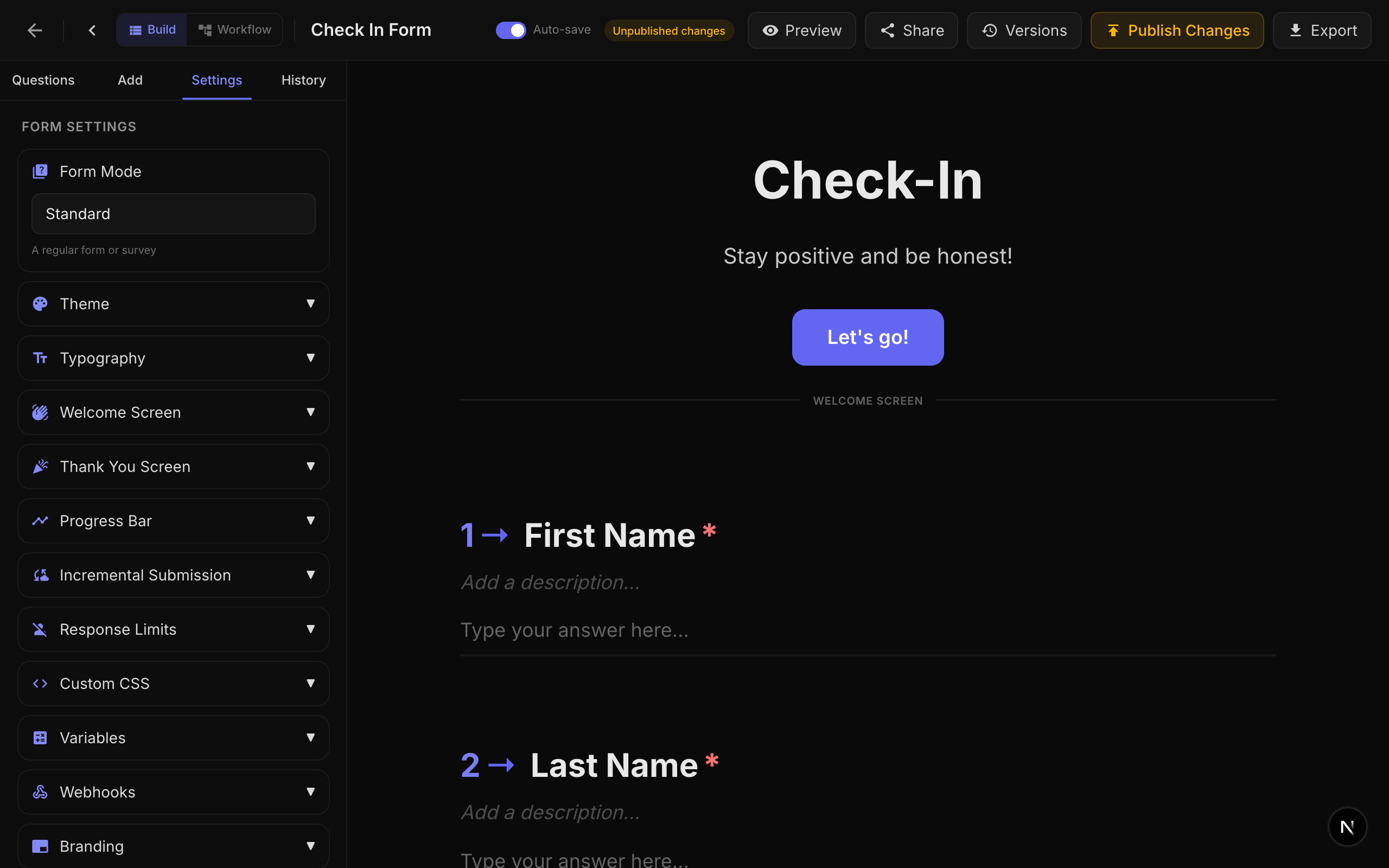
| Setting | विवरण | Default |
|---|---|---|
| Title | Form का title, dashboard में और वैकल्पिक रूप से welcome screen पर प्रदर्शित। | आवश्यक |
| Description | Internal reference के लिए एक वैकल्पिक description। | खाली |
| Slug | आपके published form का URL path (जैसे, nueform.io/f/my-survey)। Unique होना चाहिए। | Auto-generated |
| Show Progress Bar | एक progress bar प्रदर्शित करता है जो दिखाता है respondent कितना आगे बढ़ चुका है। | Enabled |
| Limit One Response | Browser-based visitor identification का उपयोग करके प्रत्येक visitor को एक ही submission तक सीमित करता है। | Disabled |
| Incremental Submission | Respondent आगे बढ़ने पर partial responses save करता है, ताकि form छोड़ने पर भी data capture हो। | Disabled |
| Allow Resume | Respondents आंशिक रूप से भरे form को resume कर सकते हैं। हर question के बाद answers database में save होते हैं, जिससे वे जहाँ छोड़ा था वहीं से जारी रख सकें — sign-in होने पर किसी भी device पर, या anonymous होने पर उसी browser पर। | Enabled |
Allow Resume
जब Allow Resume enabled होता है (default), तो NueForm पारदर्शी रूप से प्रत्येक respondent की progress को database में save करता है क्योंकि वे form में आगे बढ़ते हैं। Save स्वयं के लिए respondent को कुछ भी opt-in नहीं करना होता — यह बस होता है।
Respondents को क्या दिखता है
- Form load पर resume modal. जब कोई respondent वापस आता है और partial progress detect होती है, तो एक blocking modal दिखाई देता है जो पूछता है "Continue where you left off?" दो विकल्पों के साथ:
- Continue — उनके पिछले answers को hydrate करता है और उन्हें अगले unanswered question पर ले जाता है।
- Start fresh — saved partial को discard करता है (एक confirm step के बाद) और एक नया attempt शुरू करता है।
- Form load पर save-progress modal (cross-device). यदि कोई sign-in NueForm user एक open form (जिसे login की आवश्यकता नहीं है) खोलता है, तो उन्हें एक modal दिखाई देता है जो offer करता है "Save your progress to your profile so you can resume on any device." Save progress चुनने पर in-flight response उनके account से link हो जाती है ताकि वे किसी अन्य browser, phone, या computer से जारी रख सकें। No thanks चुनने पर response anonymous रहती है और केवल उसी browser से जुड़ी रहती है; अगले 30 दिनों के लिए prompt suppress कर दिया जाता है।
Progress कहाँ store होती है
| Respondent | Storage | Cross-device? |
|---|---|---|
| Sign-in user (login required) | Database में user के account से linked। | हाँ — किसी भी device से resume करें। |
| Sign-in user (open form, "Save progress" को opt-in किया) | Database में user के account से linked। | हाँ — किसी भी device से resume करें। |
| Sign-in user (open form, "Save progress" को decline किया) | Anonymous, browser के visitor ID से जुड़ी। | नहीं — केवल उसी browser पर। |
| Anonymous respondent | Browser के visitor ID (cookie) से जुड़ी। | नहीं — केवल उसी browser पर। |
Resume server-side है और default पर on है — browser cookies clear करना अब किसी sign-in user की saved progress को नहीं मिटाता। Anonymous respondents के लिए, progress अभी भी visitor-ID cookie से बंधी है, इसलिए cookies clear करने पर वे फिर से शुरू करेंगे।
Allow Resume कब बंद करें
इस setting को केवल one-shot forms के लिए disable करें जहाँ partial state उपयोगी नहीं है — उदाहरण के लिए, एक quick poll, kiosk-mode form, या single-pulse "thumbs up / thumbs down" prompt। अधिकांश लंबे forms को इसे on रखने से लाभ होता है।
Welcome Screen
Welcome screen वह पहली चीज़ है जो respondents form खोलने पर देखते हैं। इसे कॉन्फ़िगर करें:
| Field | विवरण | Default |
|---|---|---|
| Welcome Title | Welcome screen पर प्रदर्शित heading। Welcome screen पूरी तरह skip करने के लिए खाली छोड़ दें। | खाली (कोई welcome screen नहीं) |
| Welcome Description | Title के नीचे supporting text। Rich text formatting सपोर्ट करता है। | खाली |
| Welcome Button Text | Form शुरू करने वाले button का label। | "Start" |
यदि आप Welcome Title खाली छोड़ते हैं, तो respondents सीधे पहले question पर पहुंचेंगे। यह embedded forms या quick surveys के लिए उपयोगी है।
Thank-You Screen
Thank-you screen respondent द्वारा form submit करने के बाद दिखाई देती है।
| Field | विवरण | Default |
|---|---|---|
| Thank You Title | Submission के बाद प्रदर्शित heading। | "Thank you!" |
| Thank You Description | Title के नीचे supporting text। Rich text formatting और variable substitution सपोर्ट करता है। | खाली |
Respondent के answers के आधार पर personalized content प्रदर्शित करने के लिए thank-you description में {variableName} syntax का उपयोग कर सकते हैं। विवरण के लिए Variables guide देखें।
Form Modes
NueForm चार अलग-अलग form modes सपोर्ट करता है, प्रत्येक एक अलग उद्देश्य के लिए डिज़ाइन किया गया है। Mode form level पर सेट किया जाता है और answers कैसे score होते हैं और end screens कैसे behave करते हैं, यह प्रभावित करता है।
Standard Mode
Surveys, contact forms, feedback collection, और किसी भी ऐसे form के लिए default mode जिसमें scoring की आवश्यकता नहीं है।
- कोई scoring या grading नहीं।
- Responses जैसे हैं वैसे collect और display होते हैं।
- End screens पूरी तरह display-based हैं।
Knowledge Quiz Mode
Quizzes, tests, और assessments के लिए डिज़ाइन किया गया जहां सही और गलत answers हैं।
- प्रत्येक scorable question (multiple choice, dropdown, picture choice, yes/no, legal, opinion scale, rating) में correct answers define किए जा सकते हैं।
- प्रत्येक सही response के लिए एक correct answer score (default: 1 point) दिया जाता है।
- Customizable messages के साथ प्रत्येक question के बाद quiz feedback दिखाया जा सकता है।
- Final score, correct answers की संख्या, और total scorable questions calculate और store होते हैं।
Quiz Settings:
| Setting | विवरण | Default |
|---|---|---|
| Show Correct Answers | प्रत्येक question के बाद respondent को बताने वाला immediate feedback दिखाता है कि वे सही थे या गलत। | Enabled |
| Correct Feedback Text | Respondent सही answer देने पर दिखाया जाने वाला custom message। अधिकतम 100 characters। | "Correct!" |
| Incorrect Feedback Text | Respondent गलत answer देने पर दिखाया जाने वाला custom message। अधिकतम 100 characters। | "Incorrect!" |
Scoring Configuration (प्रति question):
- Correct Answers (
correctAnswers): Correct answer बनाने वाली choice IDs का array। Single-answer questions के लिए, इसमें एक ID होती है। Multi-select questions के लिए, सभी correct IDs चुनी जानी चाहिए। - Correct Answer Score (
correctAnswerScore): Correct answer के लिए दिए जाने वाले points। Default 1 है।
Lead Qualification Mode
Lead scoring, personality assessments, और ऐसे forms के लिए डिज़ाइन किया गया जहां अलग-अलग answers अलग-अलग point values carry करते हैं।
- Scorable question में प्रत्येक choice को एक point value (
choiceScores) असाइन किया जाता है। - Respondent आगे बढ़ने पर points accumulate होते हैं।
- Score ranges के साथ एक से अधिक end screens कॉन्फ़िगर किए जा सकते हैं, और respondent को उनके total score के आधार पर उचित end screen पर route किया जाता है।
Match Quiz Mode
Personality quizzes, "Which character are you?" style forms, और outcome-based assessments के लिए डिज़ाइन किया गया।
- प्रत्येक choice एक या अधिक end screen outcomes (
choiceOutcomes) से map होती है। - Respondent answer देने पर, प्रत्येक outcome के लिए tallies accumulate होती हैं।
- सबसे अधिक tally वाला end screen प्रदर्शित होता है।
सभी quiz modes में, केवल scorable question types scoring में भाग लेते हैं: Multiple Choice, Dropdown, Picture Choice, Yes/No, Legal, Opinion Scale, और Rating।
End Screen Questions
Quiz modes (knowledge, lead qualification, match) में, आप अपने form में एक से अधिक end_screen questions जोड़ सकते हैं। ये conditional endings के रूप में काम करते हैं:
- Knowledge Quiz: Respondent के score के आधार पर end screen चुना जाता है।
- Lead Qualification: प्रत्येक end screen में
scoreRange(min/max) होता है, और matching range निर्धारित करती है कि कौन सी screen दिखाई जाए। - Match Quiz: प्रत्येक end screen choice outcomes से tallies accumulate करता है, और सबसे अधिक tally वाला जीतता है।
Questions जोड़ना
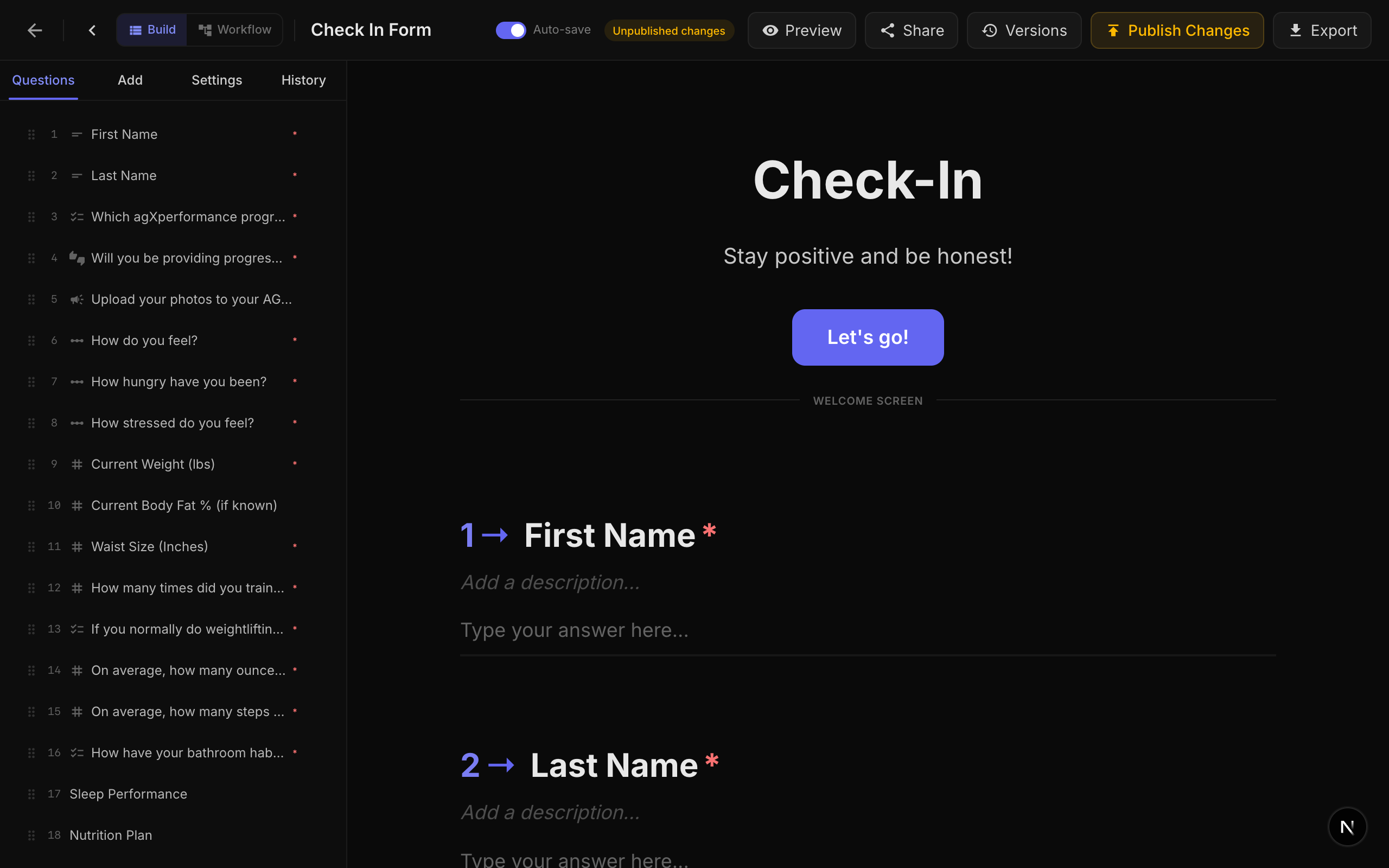
Questions form builder के बाईं ओर Question Type Palette से जोड़े जाते हैं। Questions categories में organize हैं:
- Text: Short Text, Long Text, Email, Phone, Number, Website
- Choice: Multiple Choice, Dropdown, Picture Choice, Yes/No
- Rating: Rating, Opinion Scale, Net Promoter Score
- Date: Date
- Media: File Upload, Drawing, Video/Audio Recording, Signature
- Layout: Statement, Welcome Screen, End Screen, Summary, Save Answers, Question Group, Multi-Question Page, Markdown
- Advanced: Legal/Terms, Ranking, Matrix, Payment, Contact Info, Address
प्रत्येक type पर विस्तृत documentation के लिए Question Types section देखें।
Question Properties
प्रत्येक question सामान्य properties का एक set साझा करता है:
| Property | विवरण |
|---|---|
| Title | Respondent को प्रदर्शित question text। Rich text (bold, italic, underline, links) और {variable} substitution सपोर्ट करता है। |
| Description | Title के नीचे दिखाया जाने वाला वैकल्पिक helper text। Rich text और variable substitution सपोर्ट करता है। |
| Required | Respondent को आगे बढ़ने से पहले इस question का answer देना अनिवार्य है या नहीं। |
| Hidden | Question respondent से छिपा है या नहीं (internal logic के लिए उपयोगी)। |
| Custom Class Name | Custom styling के लिए question container पर लागू एक वैकल्पिक CSS class name। |
| Hide Question Number | Display से question number prefix (जैसे, "1 ->") हटाता है। |
| Transition | इस question पर transition करते समय उपयोग किया जाने वाला animation। Options: Vertical Slide (default), Horizontal Slide, Diagonal Slide, Elastic Bounce, Zoom Through, Rotate In। |
| Answer Variable | Respondent के answer को बाद के questions में {variable} substitution में उपयोग के लिए named variable के रूप में store करता है। |
Media Attachments
प्रत्येक question वैकल्पिक media attachments सपोर्ट करता है। आप किसी भी question में images, videos, icons, या QR codes जोड़ सकते हैं।
Media Types:
| Type | विवरण |
|---|---|
| Image | Image upload करें या external URL प्रदान करें। Brightness, contrast, saturation, hue rotation, और blur adjustments सपोर्ट करता है। |
| Video | YouTube या Vimeo video embed करें जिसमें वैकल्पिक autoplay, muted, loop, और controls settings हों। |
| Icon | Customizable color के साथ हज़ारों react-icons में से चुनें। |
| QR Code | URL template से QR code generate करें जो {variable} substitution सपोर्ट करता है। |
Layout Options (Desktop):
| Layout | विवरण |
|---|---|
stack | Media question content के ऊपर दिखाई देती है (default)। |
split-left | बाईं ओर media, दाईं ओर question, side-by-side layout में। |
split-right | दाईं ओर media, बाईं ओर question। |
float-left | Media question text के बाईं ओर float करती है। |
float-right | Media question text के दाईं ओर float करती है। |
background | Media question के पीछे background के रूप में दिखाई देती है। |
fullscreen-fit | Media aspect ratio बनाए रखते हुए screen भरती है। |
fullscreen-cover | Media आवश्यकतानुसार crop करके पूरी screen cover करती है। |
Layout Options (Mobile):
| Layout | विवरण |
|---|---|
stack | Media question के ऊपर दिखाई देती है (default)। |
hidden | Mobile devices पर media छिपी होती है। |
background | Media background के रूप में दिखाई देती है। |
fullscreen-fit | Media aspect ratio बनाए रखते हुए screen भरती है। |
fullscreen-cover | Media पूरी screen cover करती है। |
Image Adjustments:
| Adjustment | Range | Default |
|---|---|---|
| Brightness | -100 से 100 | 0 |
| Contrast | 0 से 200 | 100 |
| Saturation | 0 से 200 | 100 |
| Hue Rotate | 0 से 360 degrees | 0 |
| Blur | 0 से 20 px | 0 |
Focal Point: Image के किस हिस्से को crop होने पर दृश्यमान रखना है, यह नियंत्रित करने के लिए focal point (0-1 normalized coordinates) सेट करें।
Zoom: अपने container को भरने के लिए crop की गई image में zoom करें — 100% से 250%, default 100%। Zoom focal point पर anchored होता है, इसलिए दोनों साथ मिलकर काम करते हैं: focal point तय करता है कि क्या दिखाना है, और zoom तय करता है कि उसे कितने पास से frame करना है। यह control केवल वहीं दिखाई देता है जहाँ image वास्तव में crop होती है, क्योंकि जब पूरी image पहले से दिखाई दे रही हो तो zoom करने के लिए कुछ बचता ही नहीं।
Choice Media Display
जब आप किसी individual choice पर media attach करते हैं — किसी Multiple Choice question में, या किसी Fuse activity के option पर — तो आप यह भी चुनते हैं कि वह उस choice पर कैसे render होगी:
| Display | विवरण |
|---|---|
| थंबनेल | Choice label के बगल में एक छोटी image। |
| पृष्ठभूमि (भरें) | Image choice की surface को भर देती है, भरने के लिए crop होकर। Photographs के लिए सर्वोत्तम, जहाँ किनारे कट जाने से फ़र्क नहीं पड़ता। |
| पृष्ठभूमि (फ़िट करें) | Image choice की surface को भरती है लेकिन पूरी बनी रहती है, choice के अपने background colour के सामने letterboxed। Wide screenshots, diagrams, या logos के लिए सर्वोत्तम, जहाँ crop होने से content कट जाता। |
भरें (Fill) और फ़िट करें (Fit) में अंतर केवल तब पड़ता है जब image और choice tile के आकार अलग-अलग हों। किसी चौकोर-सी tile में एक wide image भरें के तहत अपनी लगभग 40% चौड़ाई खो देती है; फ़िट करें के तहत वह पूरी बनी रहती है, और उसके ऊपर तथा नीचे choice का colour दिखाई देता है।
नए attach किए गए media का default poll-style Fuse activities और tier lists पर पृष्ठभूमि (फ़िट करें) होता है, और अन्यत्र थंबनेल। किसी मौजूदा choice का display बदलने से अन्य choices कभी नहीं बदलते।
Slideshows
Slideshow बनाने के लिए आप एक question पर एक से अधिक media items attach कर सकते हैं। Slideshow settings में शामिल हैं:
| Setting | विवरण | Default |
|---|---|---|
| Duration | प्रति slide सेकंड। | 5 |
| Transition | Slides के बीच animation: crossfade, slide, zoom, flip, ken-burns, blur-fade। | crossfade |
| Autoplay | Slides स्वचालित रूप से advance करें। | Enabled |
| Show Indicators | Slideshow के नीचे dot indicators प्रदर्शित करें। | Enabled |
| Show Arrows | Previous/next arrows प्रदर्शित करें। | Disabled |
| Pause on Hover | User के slideshow पर hover करने पर autoplay pause करें। | Enabled |
Question Ordering
Questions respondents को builder में दिखाई देने वाले क्रम में प्रदर्शित होते हैं। आप builder के बाईं ओर question navigator panel में drag करके questions को reorder कर सकते हैं।
Saving और Publishing
Changes करते ही forms स्वचालित रूप से save होते हैं। Form को respondents के लिए उपलब्ध कराने के लिए, आपको इसे publish करना होगा। Publishing workflow के विवरण के लिए Publishing guide देखें।