
File Upload
Allow respondents to upload files from their device. Supports configurable file type restrictions and size limits.
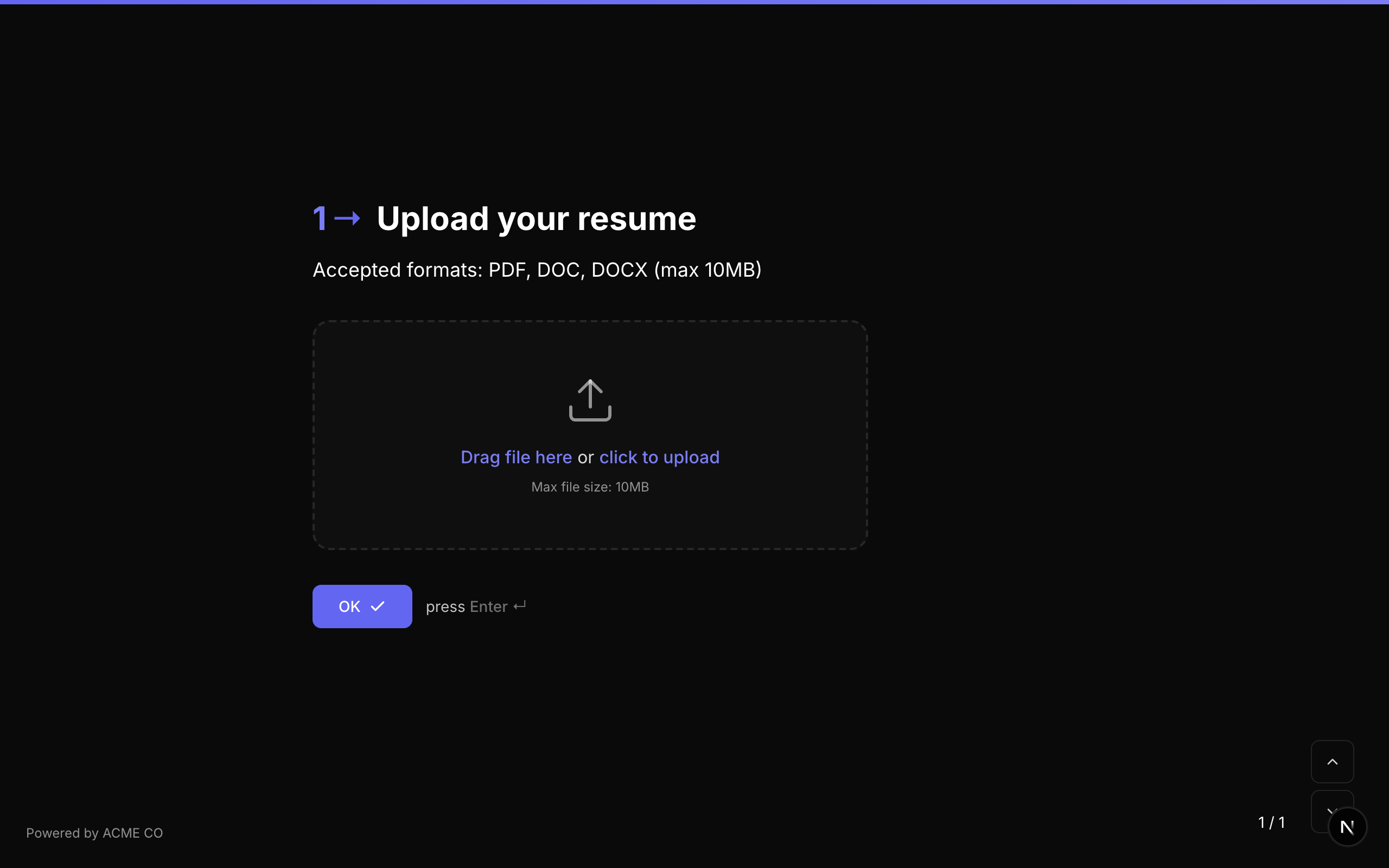
Type identifier: file_upload
Properties
| Property | Type | Description | Default |
|---|---|---|---|
choices | Choice[] | When used for file uploads, the label field of each choice specifies an allowed MIME type or file extension (e.g., "application/pdf", "image/*"). If empty, all file types are accepted. | [] (all types) |
max | number | Maximum file size in megabytes (MB). | None (platform limit applies) |
File Storage
Uploaded files are stored in Vercel Blob storage. Each upload record includes:
| Field | Description |
|---|---|
blobUrl | The Vercel Blob storage URL for the file. |
originalName | The original filename from the user (e.g., resume.pdf). |
uuidName | UUID-based name stored in blob (e.g., a1b2c3d4.pdf). |
size | File size in bytes. |
contentType | MIME type (e.g., application/pdf, image/png). |
Storage Tracking
Each user's total file storage consumption is tracked in bytes (storageUsedBytes on the User model). Storage limits vary by plan tier.
Validation
If required is true, the respondent must upload a file before proceeding.
Logic Jump Operators
equals, not_equals, is_answered, is_not_answered
Answer Format
The answer is stored as a FileUploadValue object:
{
  "fileId": "abc123",
  "originalName": "resume.pdf",
  "size": 245760,
  "contentType": "application/pdf",
  "downloadUrl": "/api/files/resume.pdf?id=abc123"
}
File uploads are attributed to the form's ID and optionally the user's ID. Respondent uploads (anonymous) have userId set to null, while builder media uploads (images for questions) have the user's ID set.
Drawing
A freehand drawing canvas where respondents can sketch artwork, diagrams, or annotations.
Type identifier: drawing
Properties
| Property | Type | Description | Default |
|---|---|---|---|
canvasSize | string | The size of the drawing canvas. Options: small, medium, large. | medium |
Canvas Sizes
| Size | Description |
|---|---|
small | A compact canvas suitable for simple sketches or icons. |
medium | A standard canvas for diagrams and illustrations. |
large | An expanded canvas for detailed drawings. |
Interaction
- The drawing canvas supports freehand drawing with mouse or touch input.
- Respondents can draw, erase, and undo their work.
- The final drawing is exported as an image file.
Validation
If required is true, the respondent must create a drawing before proceeding.
Logic Jump Operators
equals, not_equals, is_answered, is_not_answered
Answer Format
The answer is stored as a FileUploadValue object (the drawing is saved as an image file):
{
  "fileId": "def456",
  "originalName": "drawing.png",
  "size": 102400,
  "contentType": "image/png",
  "downloadUrl": "/api/files/drawing.png?id=def456"
}
The Drawing question does not display a separate "OK" button. Respondents submit their drawing using the form's standard navigation controls.
Video/Audio Recording
Capture video or audio responses directly through the respondent's browser using their device's camera and microphone.
Type identifier: recording
Properties
| Property | Type | Description | Default |
|---|---|---|---|
recordingMode | string | The type of recording. Options: video, audio. | video |
maxDuration | number | Maximum recording duration in seconds. | 120 (2 minutes) |
Recording Modes
| Mode | Description |
|---|---|
video | Records both video and audio using the device's camera and microphone. |
audio | Records audio only using the device's microphone. No camera is needed. |
Interaction
- The respondent clicks a "Start Recording" button.
- The browser requests camera/microphone permissions (if not already granted).
- A live preview is shown during recording.
- The respondent clicks "Stop Recording" to finish.
- A preview of the recording is shown.
- The respondent can re-record or proceed.
Browser Requirements
- Requires a modern browser with MediaRecorder API support.
- The respondent must grant camera and/or microphone permissions.
- HTTPS is required for media capture (all NueForm URLs are HTTPS by default).
Validation
If required is true, the respondent must complete a recording before proceeding.
Logic Jump Operators
equals, not_equals, is_answered, is_not_answered
Answer Format
The answer is stored as a FileUploadValue object:
{
  "fileId": "ghi789",
  "originalName": "recording.webm",
  "size": 524288,
  "contentType": "video/webm",
  "downloadUrl": "/api/files/recording.webm?id=ghi789"
}
Video recordings can produce large files. Consider setting a reasonable maxDuration to keep file sizes manageable. A 2-minute video recording at standard quality typically produces a file between 5-15 MB.
Signature
A digital signature pad where respondents can draw their signature using a mouse, stylus, or finger.
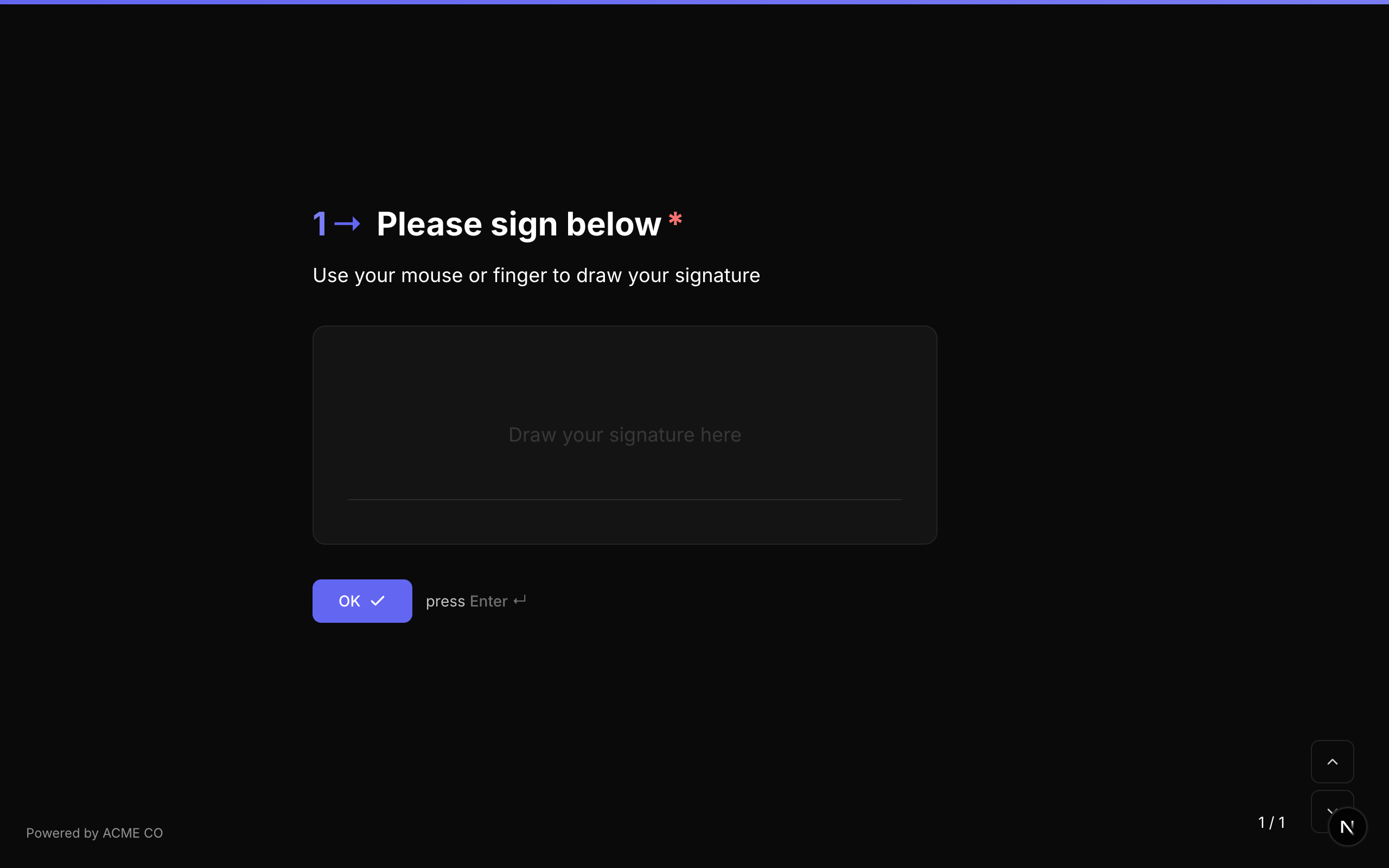
Type identifier: signature
Properties
The Signature question type has no additional properties beyond the common question properties.
Interaction
- A signature pad is displayed with a clear canvas.
- The respondent draws their signature using mouse, stylus, or touch input.
- A "Clear" button is available to start over.
- The signature is captured as a vector path or image.
Validation
If required is true, the respondent must draw a signature before proceeding.
Logic Jump Operators
equals, not_equals, is_answered, is_not_answered
Answer Format
The answer is stored as a string (typically a data URL or base64-encoded image of the signature).
Signatures are lightweight compared to drawings and recordings. They are typically stored as SVG paths or small PNG images, resulting in files well under 100 KB.
Media Attachments on Media Questions
Just like all other question types, media capture questions support media attachments (images, videos, icons, QR codes). This lets you display an example or instruction alongside the capture interface. For example, you might show an example signature image as media on a Signature question, or show a QR code on a File Upload question that links to a companion mobile upload page.
See the Creating Forms guide for details on media options and layout configurations.